User groups
User groups decide about the rights of a user in PeakTMS. Each user group can be assigned to
- one or more data pools with a specific role
- one or several locations.
- one or several projects
Additionally specific administration functions can be assigned to a user group.
The overall rights of a user are populated as sum of the rights given by all assigned user groups.
The user group list view
The list view provides you with an overview over all currently registered users. You can use the table headers to define filters or to change the column width and order. Pressing the column chooser icon will give the possibility to add additional columns, e.g. about the change history.
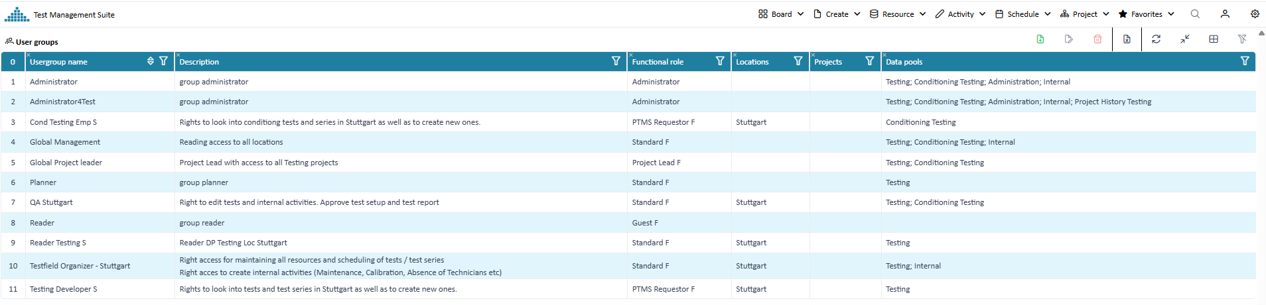
Overview registered users
Create / Edit a user group
Press the create or edit button. In the upcoming edit mask fill the relevant properties
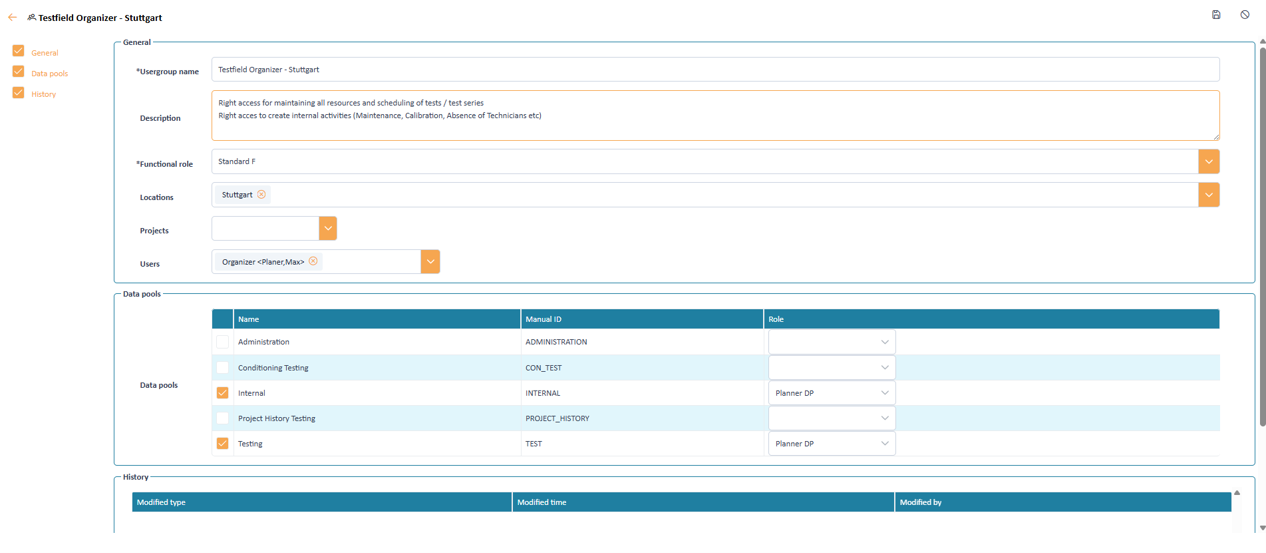
Input mask to define the user properties
User group properties
A user group is specified by the following information
User group name Description Functional role Locations Users Data pools The overall rights of the user are populated as sum of the rights given by all assigned user groups.