Project types
The project type manager allows to define the project types which are used in your organization and the fields of each project which is necessary to describe it. The project types are the basis for working on them in the project planner.
The project type list view
The list view provides you with an overview over all currently registered project types. You can use the table headers to define filters or to change the column width and order. Pressing the column chooser icon will give the possibility to add additional columns, e.g. about the change history.

Overview registered project types
Definition of general information

General attributes of project types
A rule snippet contains the following information
Name Manual id Display attribute Sorting attribute Within project option Log change? Composite unique Data pools Icon Default columns Definition of dynamic attributes
Additionally to the general information, each resource type can have a set of dynamic attributes which are used to describe the resource. Attributes are grouped into named groups. Each attribute has a type which defines the input method and the data type of the attribute. Please refer here for available attribute types: Dynamic attributes types.
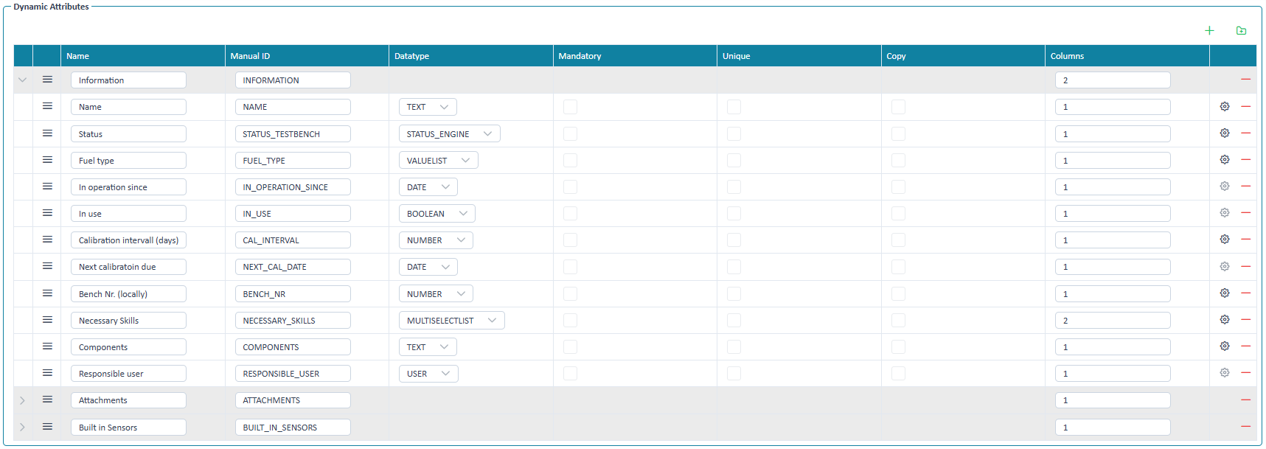
Example of dynamic attributes of a resource
In this area you can declare:
Dynamic attribute groups
They are used to group the attributes in the resource type input masks. They also define the layout in which the attributes are displayed.
Dynamic attributes
They are used to describe the resource. Each attribute has a type which defines the input method and the data type of the attribute.
The examples below show how fields are positioned in the input mask based on the definition of attribute groups and attributes.
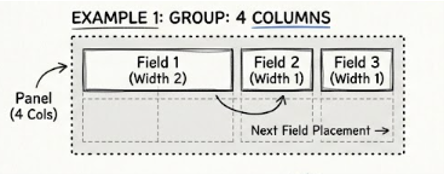
Example, position attributes within a group
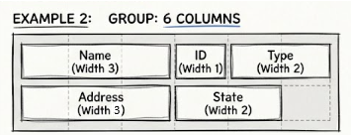
Example, position attributes within a group
Adding / Editing an attribute group
Groups can be added through clicking on the corresponding icon . If there is already at least one group clicking on it and selecting in the context mene "Add group above" or "Add group below" will add a new group as well.
The properties of a group can be edited directly in the table.
Name Manual Id Columns Pressing the button in a row deletes the attribute group including all attributes within the group.
Adding / Editing an attribute
Attributes can be added through clicking on the corresponding icon . Alternatively, if there is already at least one attribute clicking on it and selecting in the context menu "Add attribute above" or "Add attribute below" will add a new attribute as well.
Name Manual Id Datatype Columns Mandatory Unique Copy Settings Pressing the button in a row deletes the attribute.
Definition of field write permissions
The application allows to define for each attribute of a resource type the field write permissions. This is done in the field permission area. Field write permissions can be assigned directly to a user group / user or based on existing data values of other attributes. Finally, also the rules engine code snippets can be used to define complex rules for field write permissions.
If for attributes no specific field write permission is defined, then the default behavior is that all users with access to the resource type can edit the attribute.
Adding / Editing a field write permission
When adding a new field write permission, follow this process:
- Select the attribute for which the permission is defined. Alternatively you can also choose All to define a permission for all attributes of the resource type.
- If applicable select in Based on an attribute which is used to define the permission based on its value. If no attribute is selected, then the permission is defined for all resources of this type.
- Select the user group or user for which the permission is defined.
- If a Based on attribute is selected, then select the value of the attribute for which the permission is defined.
The picture below permits the group Administrator to have write permissions on the field "Calibration interval", if fuel type is Electric or Petrol.
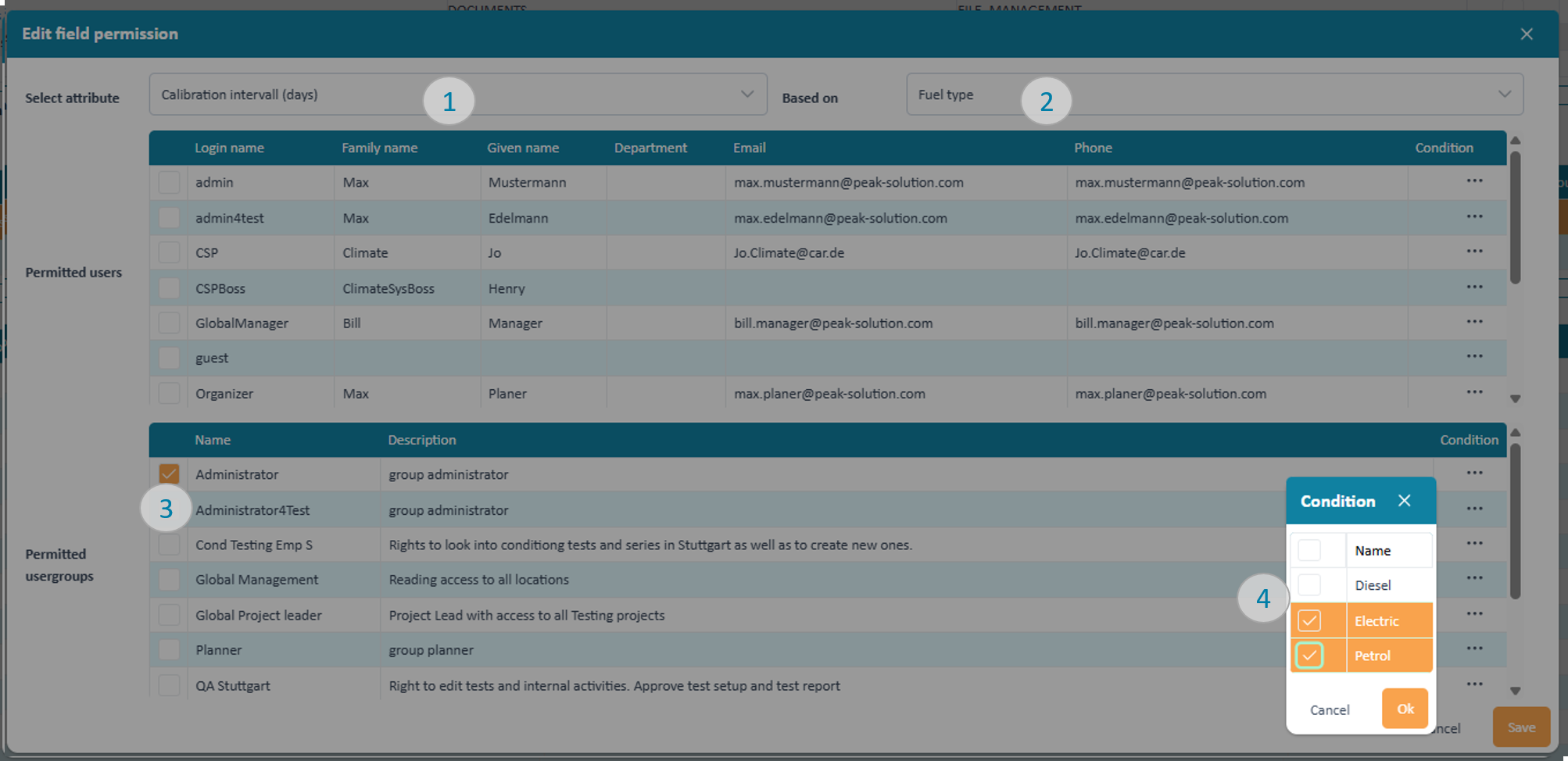
Definition of field write permissions