Field type reference
For defining the TMS model with its resource-, activity- and project types, the administrator can define diverse attributes with different data types. Each data type has its specific settings and user interface. This page provides a reference of all available data types and their settings.
APPROVE
The field provides a checkbox to approve a resource, activity or project. It automatically logs the user and timestamp of the approval. The approval can be revoked by unchecking the box. Generally it is combines with status engine as trigger to progress a workflow for approval of resources, activities or projects.

Approve field
Special settings: No special settings are available.
APPROVE / REJECT
The field provides a choice field to either approve or reject a resource, activity or project. It automatically logs the user and timestamp of the approval or rejection. Generally it is combines with status engine as trigger to progress a workflow for approval of resources, activities or projects. E.g. the different choices can lead to different status transitions in the status engine.

Approve / Reject field
Special settings: No special settings are available.
BOOLEAN
A boolean attribute can have the values true or false. In the user interface it is displayed as a checkbox.
Special settings: No special settings are applicable for boolean attributes.
COMPOSE
A compose attribute is a read-only attribute which is automatically calculated based on other attributes. It can be used to combine the values of other attributes into one value. E.g. it can be used to combine first name and last name into a full name.

A composed field based on family name and given name
Special settings:
The "Display name" defines how the value of the compose attribute is calculated. It can be a simple concatenation of other attributes. All possible attribute values are proposed in the "possible variables" section.
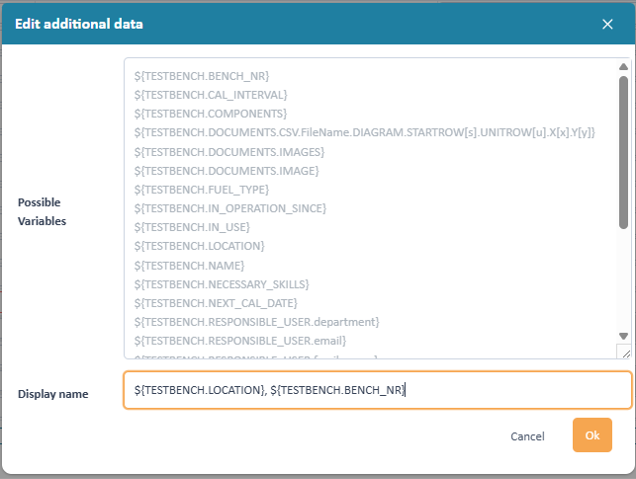
Location and test bench nr are combined to one expression
DATE
Provides a date picker to select a date. The date is stored in the database as a date value. In the user interface it is displayed in the format defined for the language of the user. Dates are not transformed between time zones, they are always stored and displayed in the local time zone of the user, as there are missing time information.
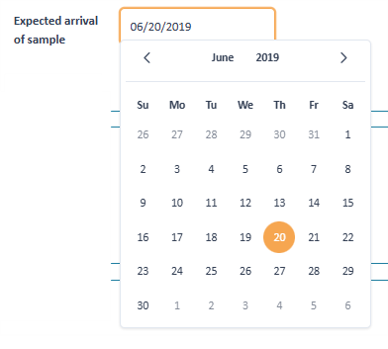
Date picker
Special settings: No special settings are available.
DECIMAL
A decimal attribute can have a decimal value. In the user interface it is displayed as a text field. The decimal separator is defined by the language of the user.

Decimal input field
Special settings:
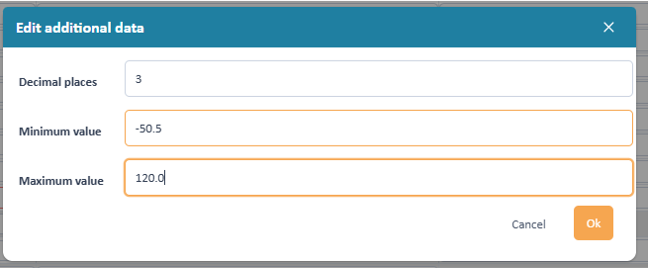
Decimal settings
Decimal places Minimum value Maximum value FILE_MANAGEMENT
A file management attribute allows to upload and download files. The files are stored in a configured PeakTMS file storage.

Field with attachments
For each upload the file name and the comment can be changed.
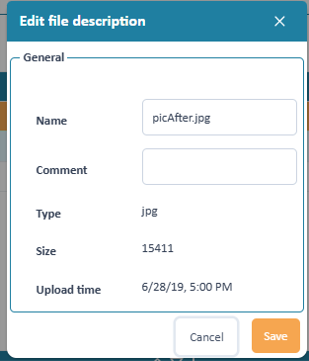
Edit of file meta data
Special settings:
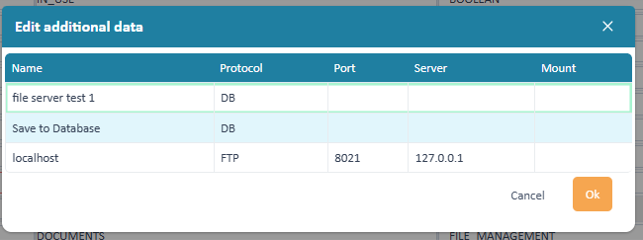
File management field
In the special settings for file management attributes the administrator needs to select on which file storage the files should be stored. The file storage needs to be configured in the file storage administration before it can be used.
IDGENERATOR
The ID generator attribute allows to generate unique IDs for resources, activities or projects. The generated ID is based on a pattern which can be defined by the administrator. The pattern can contain static text and dynamic variables and running numbers

Generated id
Special settings:
When setting up an ID generation field there are 2 options available to define the pattern for the ID generation:
Option Standard: The registered standard ID generator is used, for most installation this is a running number.
Option Customized: The administrator can define a custom pattern for the ID generator. The pattern can contain static text and dynamic variables.
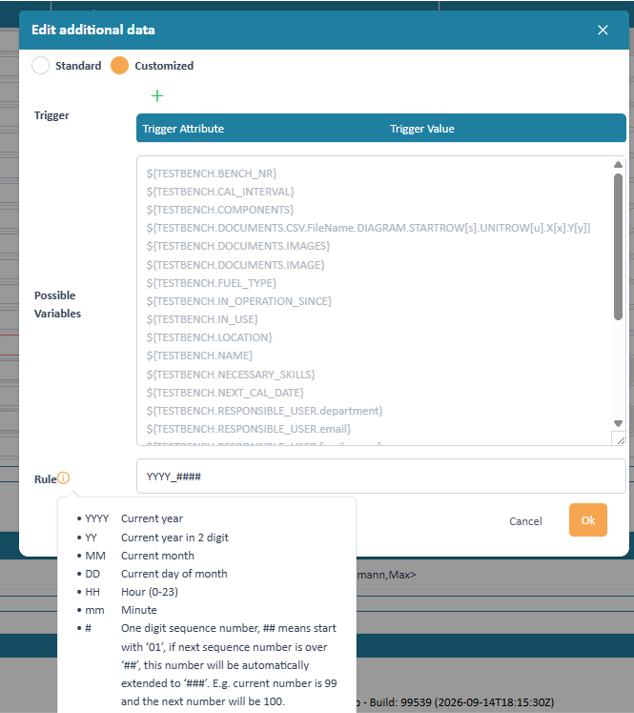
Configuring an id generator
The field possibl variables shows all available variables which can be used in the pattern. The variables are based on the attributes of the resource, activity or project type. Additionally following information can be inserted
- YYYY Current year
- YY Current year in 2 digit
- MM Current month
- DD Current day of month
- HH Hour (0-23)
- mm Minute
- '#' One digit sequence number, '##' means start with ‘01’, if next sequence number is over ‘##’, this number will be automatically extended to ‘###’. E.g. current number is 99 and the next number will be 100.
MULTISELECT
The field provides a multi select list to select multiple values from a predefined list of values. The values can be defined in a value list. Entities of type resource, value list and project can be used as value base.
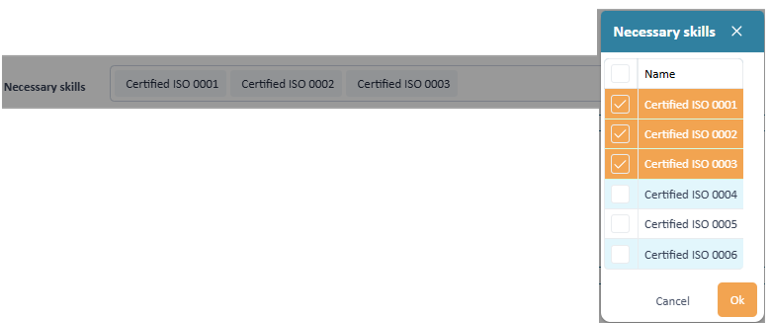
Selecting multiple values
Special settings:
In the special settings for multi select attributes the administrator needs to select on which value list the values should be based.
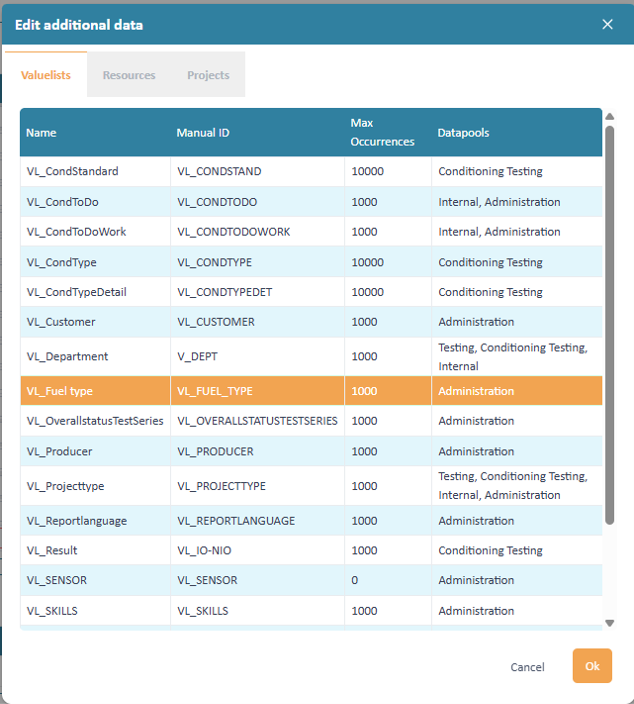
Select base for the provided values
NUMBER
A number attribute can have a numeric non-decimal value. In the user interface it is displayed as a text.

Number input field
Special settings:
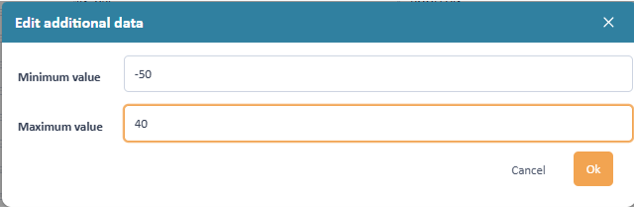
Number settings
Minimum value Maximum value OWNED_OBJECTLIST
The field provides a table with records which are fully owned by the resource, activity or project. The records can directly be created, edited and deleted in the table. The picture below shows an example where a table of sensors is built in a test bench.
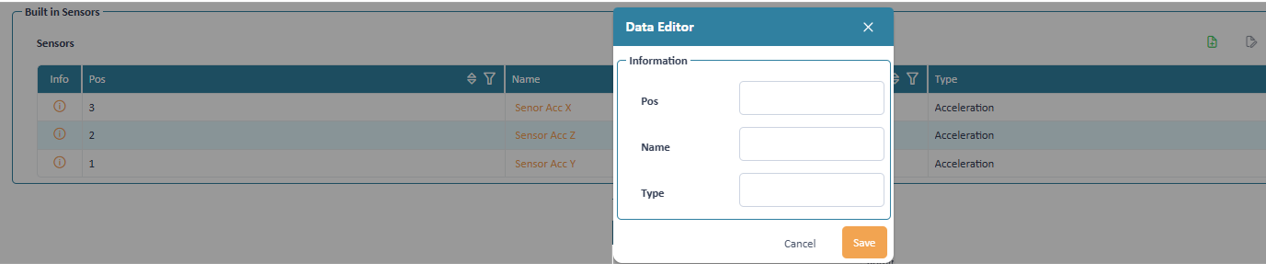
Sensors in a testbench modelled as OWNED_OBJECTLIST
Special settings: In the special settings for owned object list attributes the administrator needs to define the attributes of the owned object type. Therefore, the administrator selects one of the existing resource, valule list or project types as base for the avilable columns and fields of the records in the table.
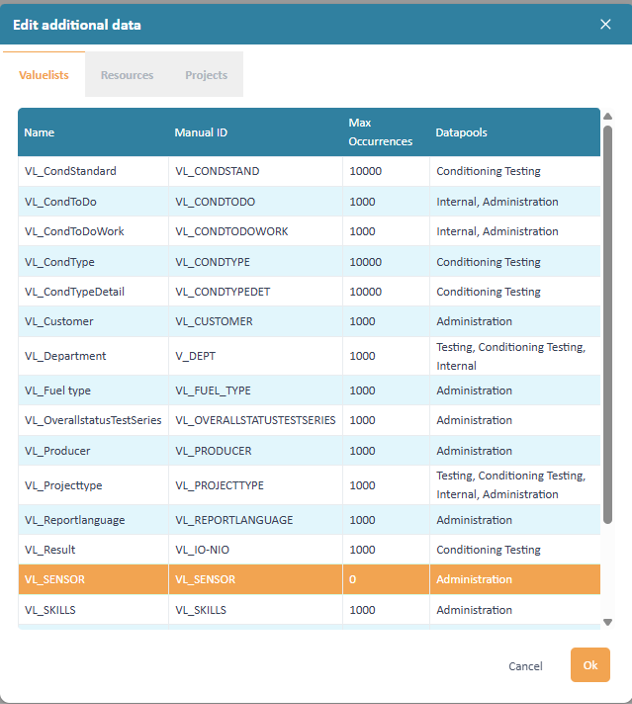
The value list VL_SENSOR with its defined attributes is base for the table
ROOT_VALUELIST
The field provides a standard value list with a build-in mechanism to reduce the options in another dependent value list. The example below shows engine types selection. Based on the selection different test cycles can be selected the dependent value list.

The selection of fields in test cycle depend on the field engine type
Special settings: To have the functionality working the root value list and the referring list must fulfill following conditions.
- The root value list must have a field of type MULTI_SELECT which uses the same type as base for selection as the dependent value list.
- The field of type MULTI_SELECT in the root value list must have the same "NAME" (Former ManualID) as the dependent value list.
STATUS_ENGINE
The status engine field allows to define a workflow for resources, activities or projects. Based on already configured status flows in status engine it provides the necessary triggers for the different possible status transitions. Triggers can be
- Defined buttons for the user for each transition
- Directly in the status field, if activated
- Conditions in attributes, e.g. APPROVE / REJECT field but also value list or check boxes, which automatically trigger a status transition
- Combinations of attribute values
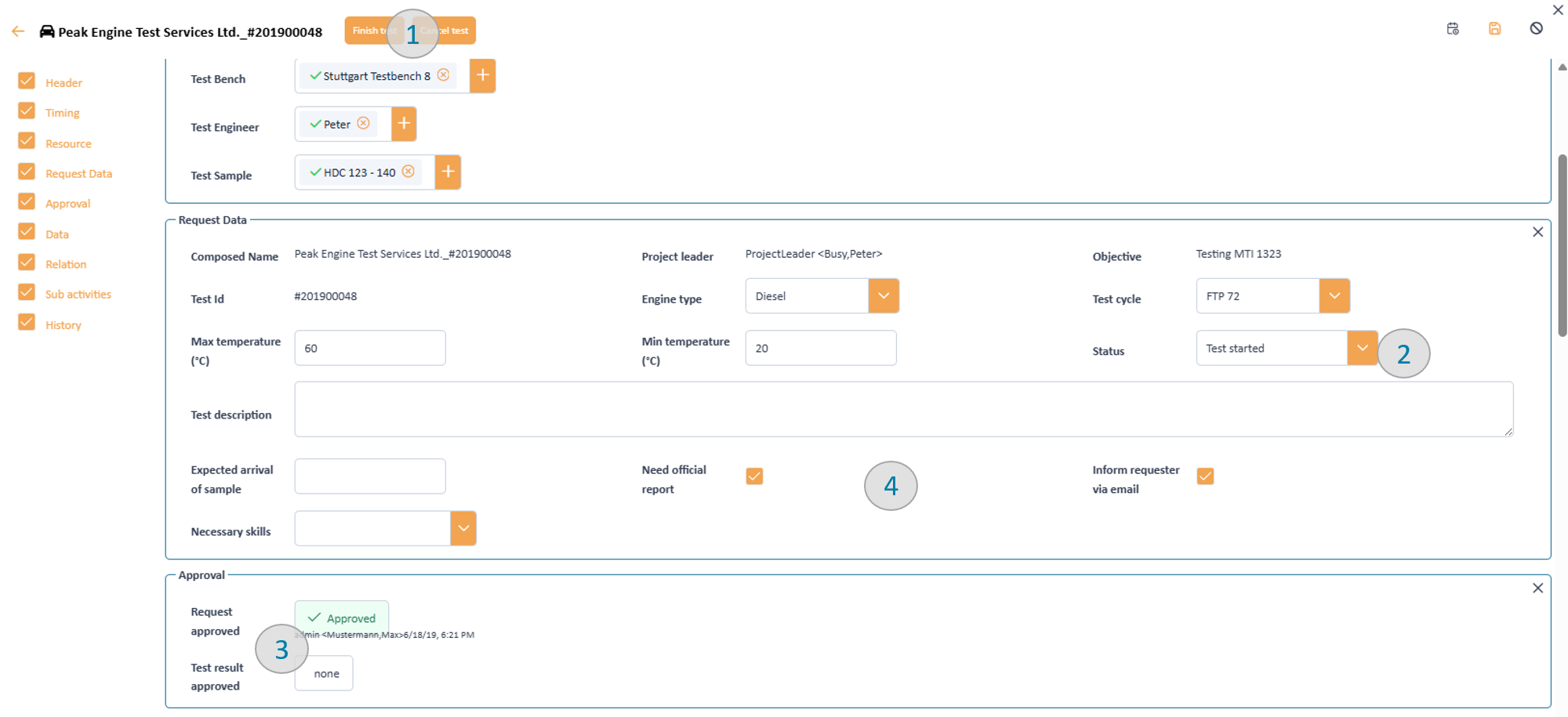
Status engine integrated in a test request ask
Additionally, it allows to define which user / user groups are allowed to trigger a status transition.
Special settings:
To configure a status engine field, first a status engine needs to be selected. Based on that the possible status transitions are listed, see the example below:
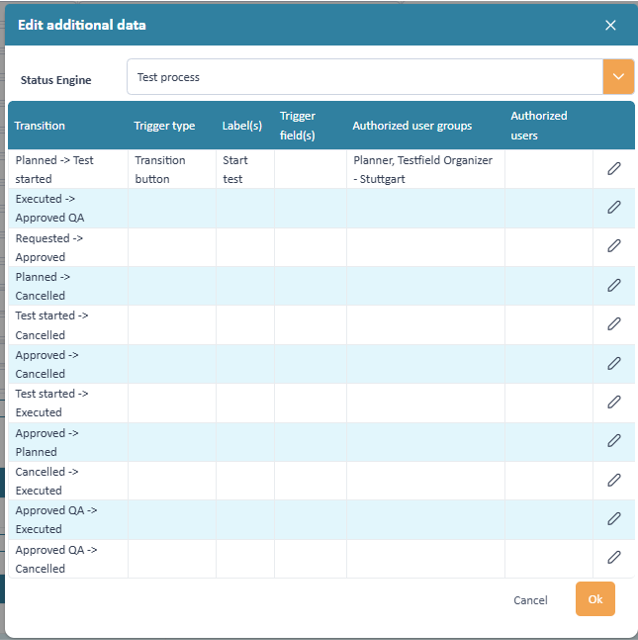
Settings with selection of status engine and configuration of the transitions
When configuration a transition than there are 2 options:
*1. Option: Transition button
A button is displayed in the user interface to allow the user to trigger the transition.
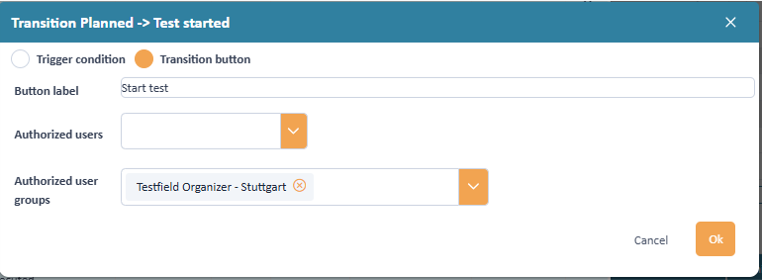
Defining a trigger button
Following properties are relevant:
Button label Authorized user Authorized user groups IF neither authorized users nor authorized user groups are defined, then all users with access to the resource, activity or project are allowed to trigger the transition.
2. Option Trigger condition: T
The transition is automatically triggered when the condition is fulfilled. The condition can be based on the value of an attribute, e.g. a checkbox or a value list selection.
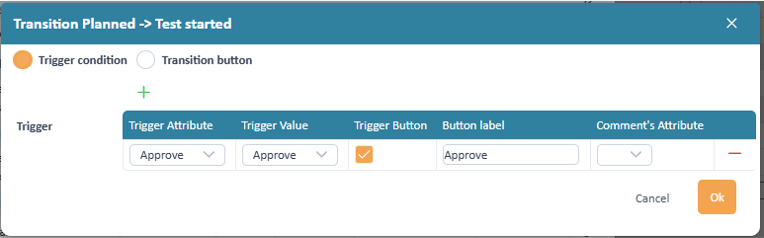
Defining a trigger button
Here one or several rows with conditions can be defined.
Following properties are relevant:
Trigger attribute Trigger value Trigger button Button label Trigger value Comment attribute No authorization is necessary for trigger conditions, as they are already configured for the triggering fields.
TEMPLATE_VALUELIST
The field offers a specialized value list which provides a template for other fields in the mask. E.g. in the mask bewlow the value list test cycle holds information about the minimum and maximum temperature for the test cycle, which is then automatically filled in the corresponding fields of the test request.
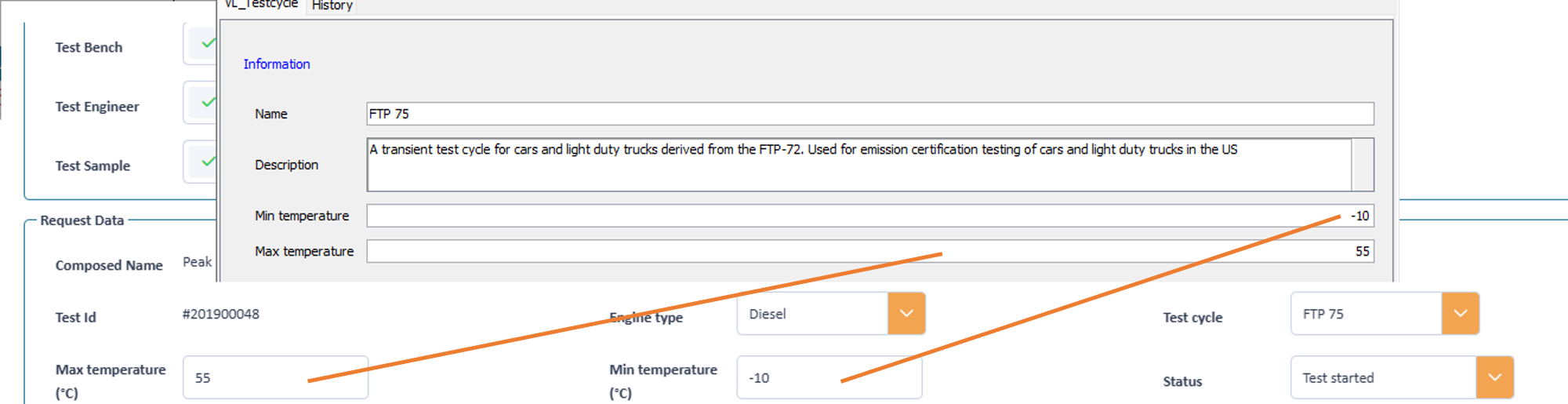
Taking over value from a template using a value list
Special settings: To configure a template value list first a value list type has to be defined with the attributes which are later taken over to the other fields. Afterward it has to be selected as base of the value list field.
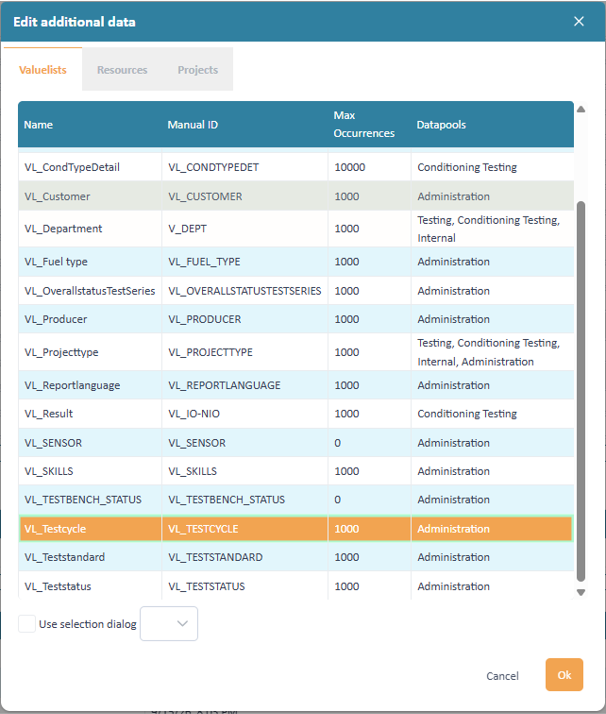
Selecting the base for the value of the valuelist
Values are taken over from the selected template if
- The fields have the same name (Former manual id)
- They have compatible data types
TEXT
The field provides a single line text input field. The minimum and maximum length of the text can be defined by the administrator as well as a regular expression to validate the input.

Text input field
Special settings:
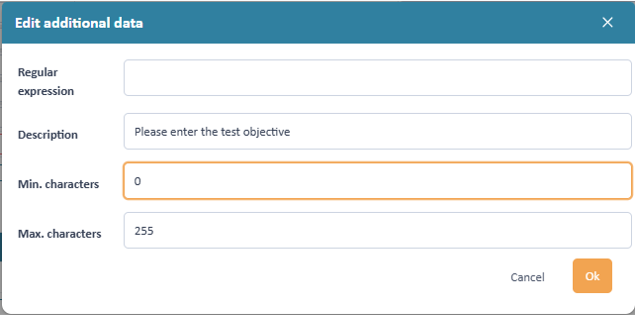
Text field settings
Regular expression Description Min. characters Max. characters TEXT_LONG
The field provides a multi line text input field. The minimum and maximum length of the text can be defined by the administrator as well as a regular expression to validate the input.

Text long in putfield
Special settings:
Text field settings
Regular expression Description Min. characters Max. characters USER
The field provides a user selection field. The user can be selected from the list of users in the system.

User input field
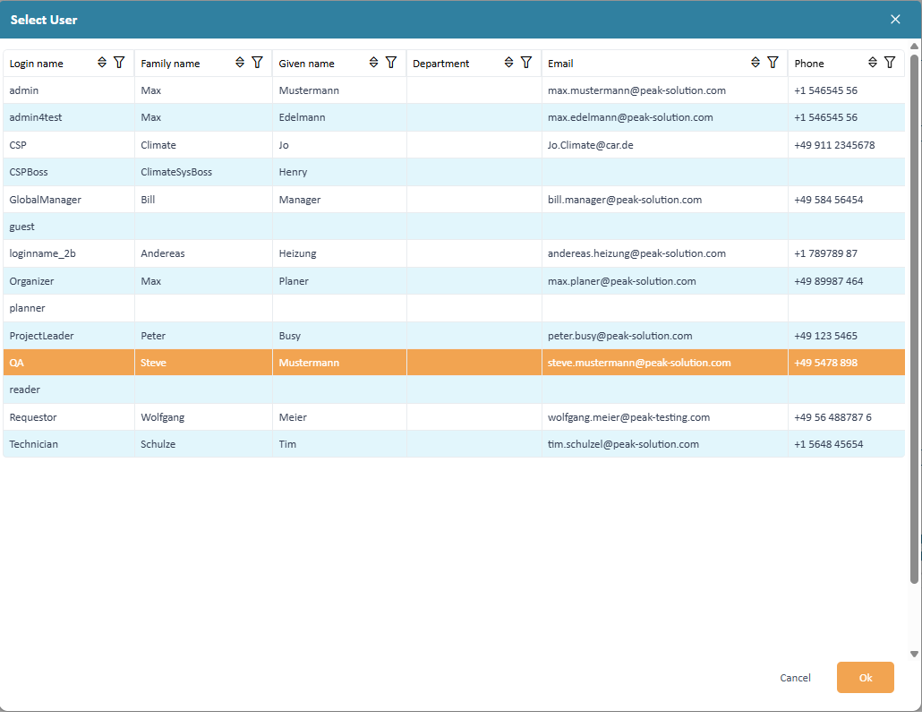
User selection dialog
Special settings: No special settings are available.
VALUELIST
The field provides a value list selection field. The value can be selected from a predefined list of values.
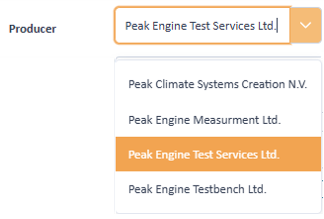
Select a value from a list of producers
Special settings:
A resource, value list or project type need to be defined as base for the selectable values.
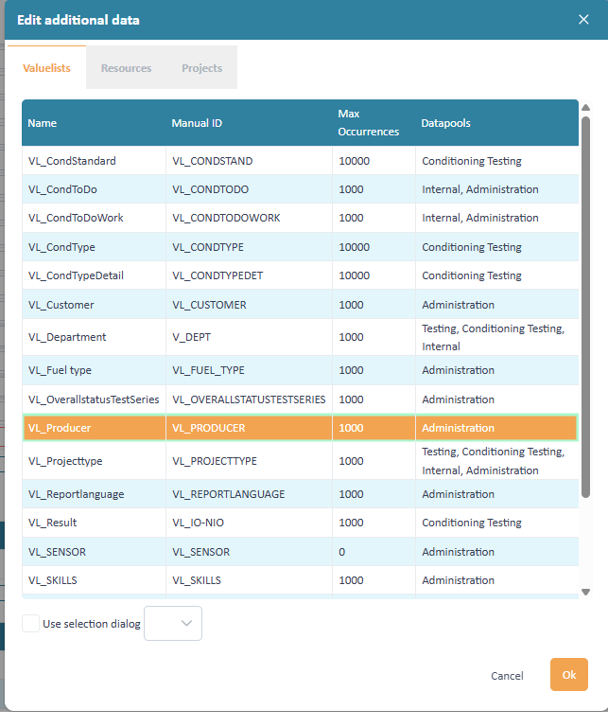
Selecting the base for the value of the valuelist