Status engine
With the status engine you can define your own status and state machines for your resources. The status engine is a powerful tool to model your business processes in PeakTMS. It allows you to define the possible states of a resource, the transitions between those states. The actions that should be taken when a transition occurs can later be defined within activities and resources which use the status engine.
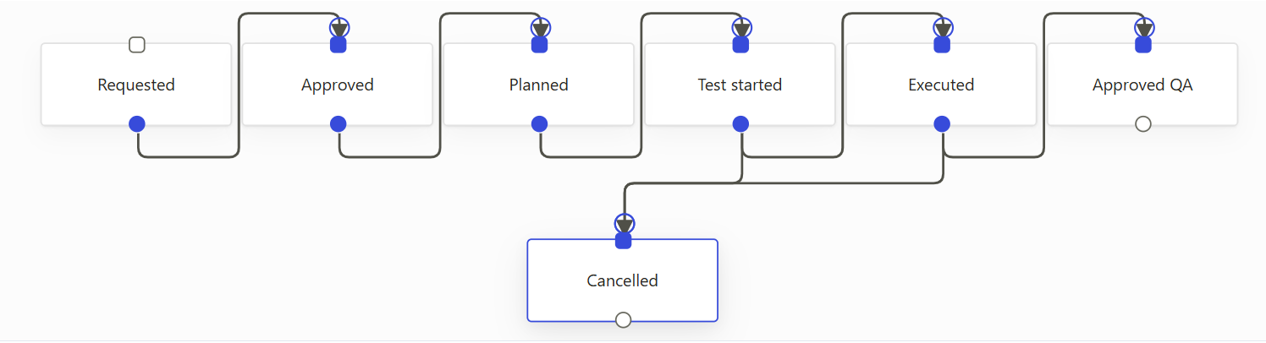
Example of a status flow
In the status engine administration you define the possible status and transitions for a workflow. Trigger and corresponding actions are defined in the activity and resource definitions where the status engine is applied.
The status engine list view
The list view provides you with an overview over all currently defined status engines. You can use the table headers to define filters or to change the column width and order. Pressing the column chooser icon will give the possibility to add additional columns, e.g. about the change history.

Overview defined status engines
Create / Edit a status engine
Press the create or edit button. In the upcoming edit mask fill the relevant properties
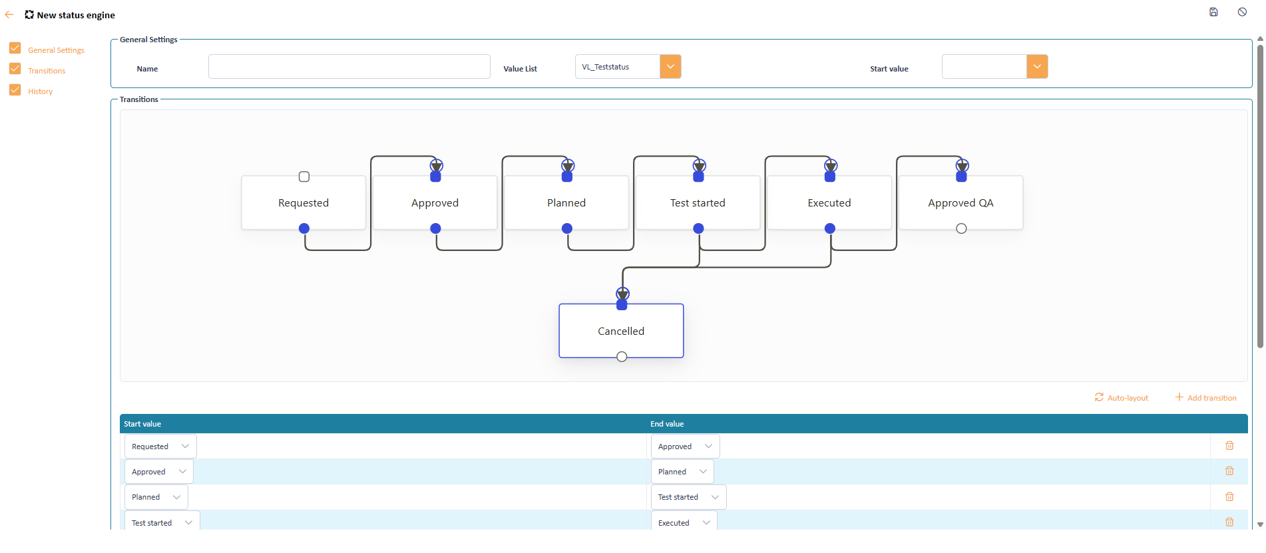
Status engine input form
Status engine properties
A status engine definition is specified by the following information
Name Value list Start value Transitions Define status transitions
There are 2 ways to define status transitions. You can use the transition diagram to create and remove transitions via drag & drop. Therefore place the mouce on a circular connector and drag the shown arrow to the rectanglular connector of the target status. The transition will be created automatically. To remove a transition, click on the circular connector and press the delete key.
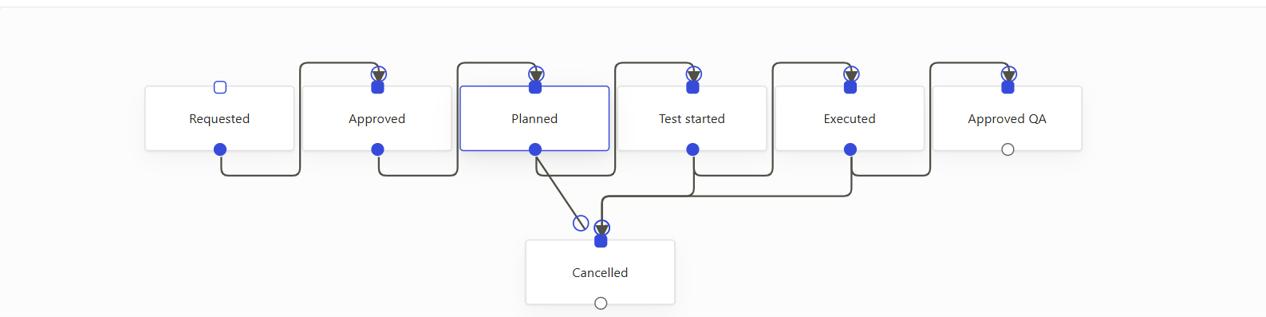
Maintain transitions via drag & drop
Alternatively you can directly edit the transition table.
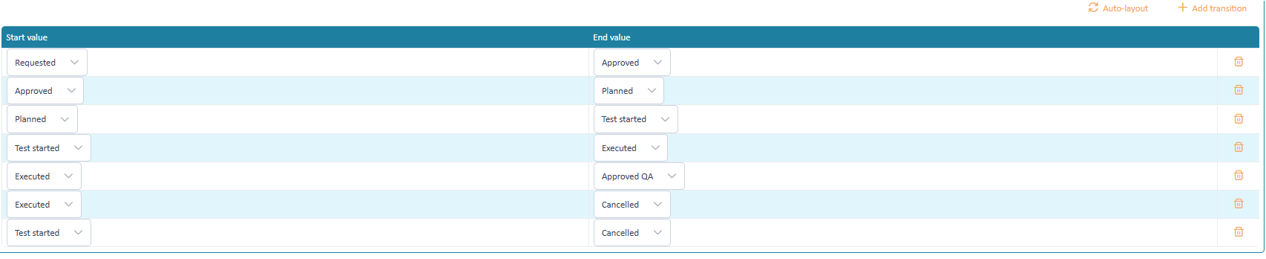
Maintain transitions via entries in transition table
Both ways are equivalent and will result in the same transition definition. Changes are automatically synchronized between the diagram and the table.