Notifications
PeakTMS allows to automatically send emails for defined events in the business process. The notification allows to define events and conditions triggering emails. You can define receivers directly or dynamic using their role in the process and include all information of the related business object into the emails subject and content. In the administration you can manage all notification templates. Based on the trigger in the templates the system will generate emails and puts them into the queue. Later mails in the queue are sent out by a background job.
Setup mailserver
Read in the documentation of the backgroundscheduler how to set up the email server and define the email sending job.
The notifications list view
The list view provides you with an overview over all currently registered notification templates. You can use the table headers to define filters or to change the column width and order. Pressing the column chooser icon will give the possibility to add additional columns, e.g. about the change history.

Overview registered users
Create / Edit a notification template
Press the create or edit button. In the upcoming edit mask fill the relevant properties
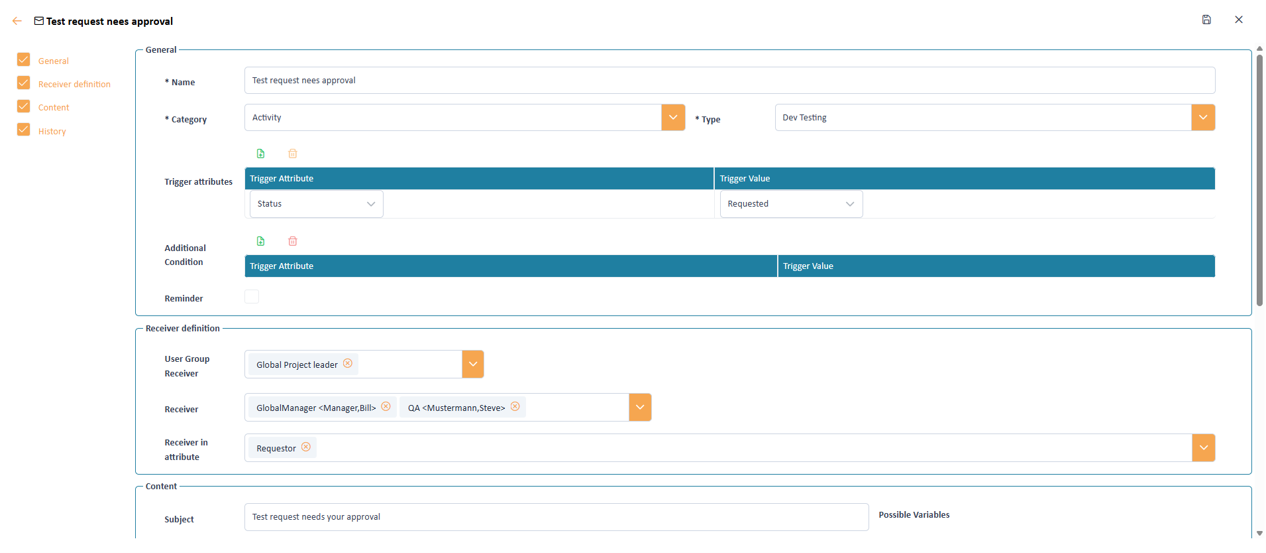
Input mask to define the user role properties
Notification trigger properties
The first part of an email template is the definition under which conditions an automatic email is sent.
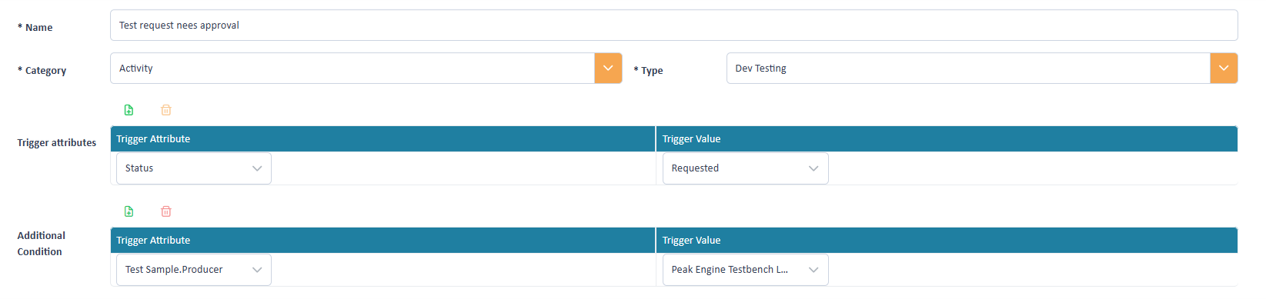
Name and trigger attributes of an email template
Name Category Type Trigger attributes Additional condition Notification reminder properties
The definition of a reminder pattern is optional. The aim of the function is to remind receivers to take actions. Therefore, here you can define an interval in which the message is sent and a criteria for finishing reminding receivers.
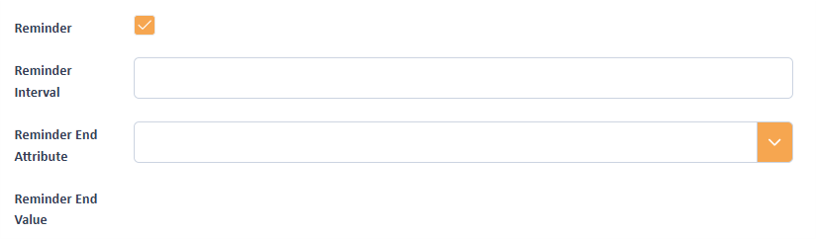
Reminder attributes of an email template
Reminder Reminder interval Reminder end attribute Reminder end value Notification receiver
PeakTMS allows to specify a static list of receivers (e.g. a user group) as well as dynamic calculation based on business process (e.g. the test responsible person).

Receiver attributes of an email template
User group receiver Receiver Receiver attribute Notification content
PeakTMS allows to include all information of the trigger object and related objects (e.g. assigned resources, projects) into the mail content.
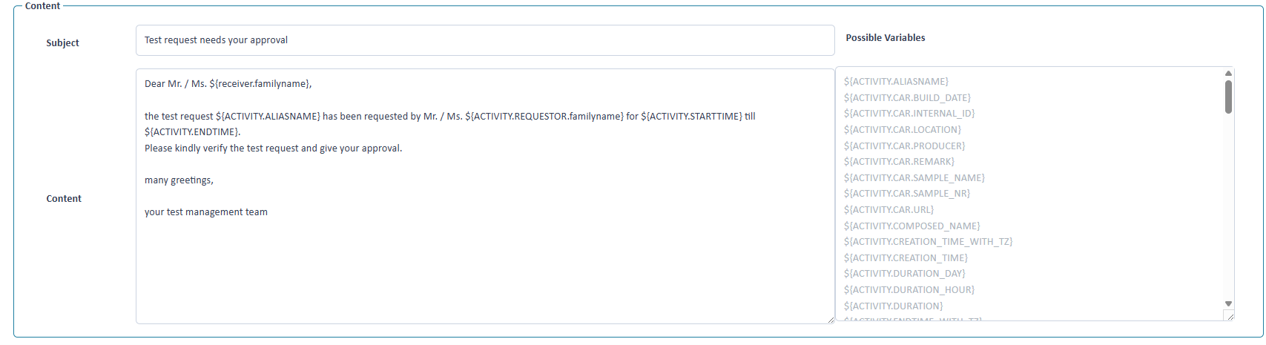
Definition of the email content
Subject Content Possible variables Integrate links into mails
You can integrate links to the trigger object described in Type in the generated email. Therefore, copy the .URL parameter
into subject or content. E.g. {ACTIVITY.CAR.URL} will give a link to a car assigned to the activity, ${ACTIVITY.URL} will provide a link
directly to the activity.
To include full links it is necessary to properly define the property TMS_BASEURL in the .env file!